Getting Around Wyatt
Every screen in Wyatt uses the same dozen-or-so building blocks.
Learn them, and you'll have already mastered about 80% of what you need to know to use Wyatt on an average day.
1. Apps
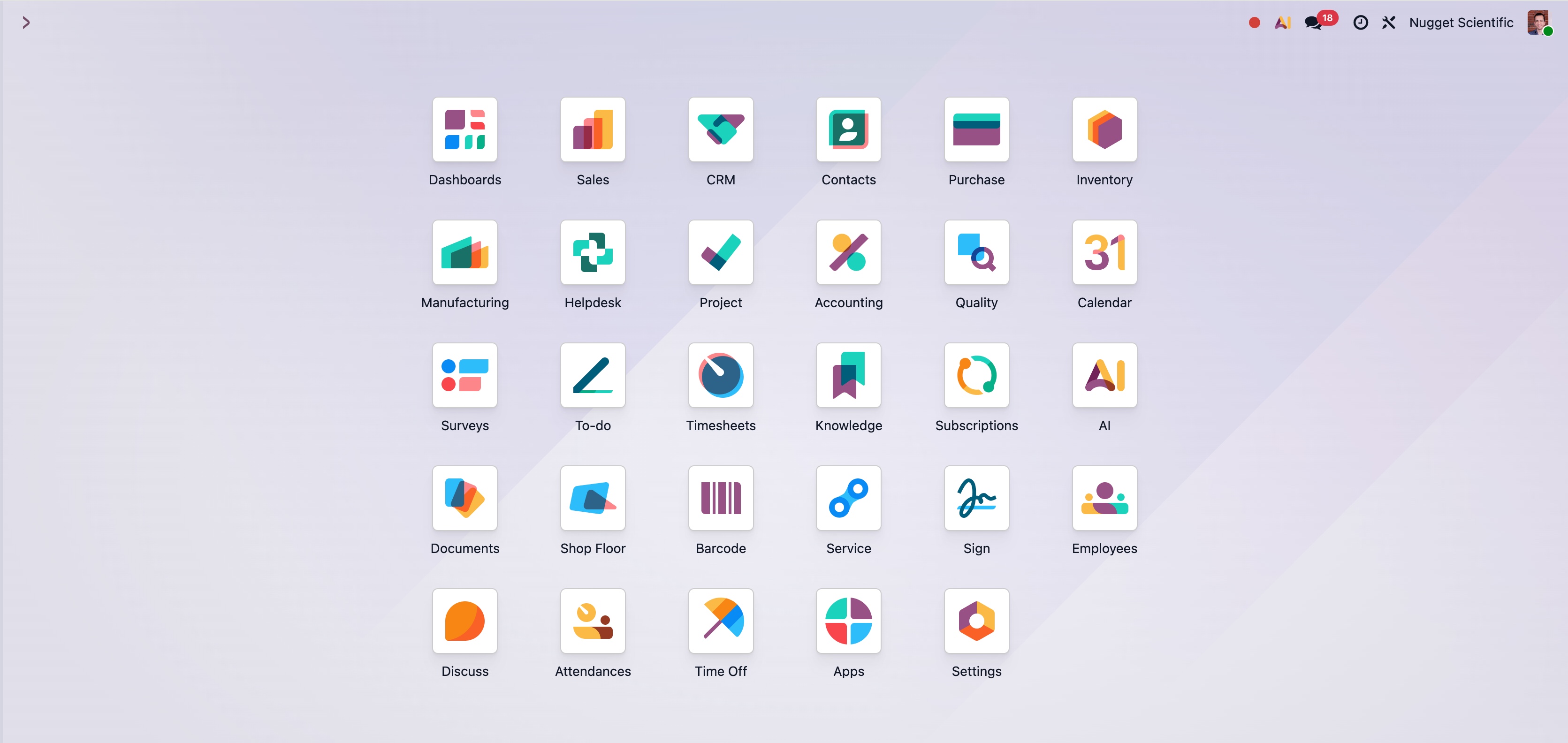
At its core, Wyatt is a collection of apps, all tightly integrated with each other: Field Service, Sales, Inventory, Timesheets, Accounting, and so on. Each app has its own menus, buttons, and way of presenting data.
To switch apps, click the arrow in the upper left-hand corner of the page. The app launcher appears, a grid of every app we have installed. Click one to jump in.
TIP
For a list of every app, what it's for, and who uses it most, see Apps Overview.
2. Menu Bars
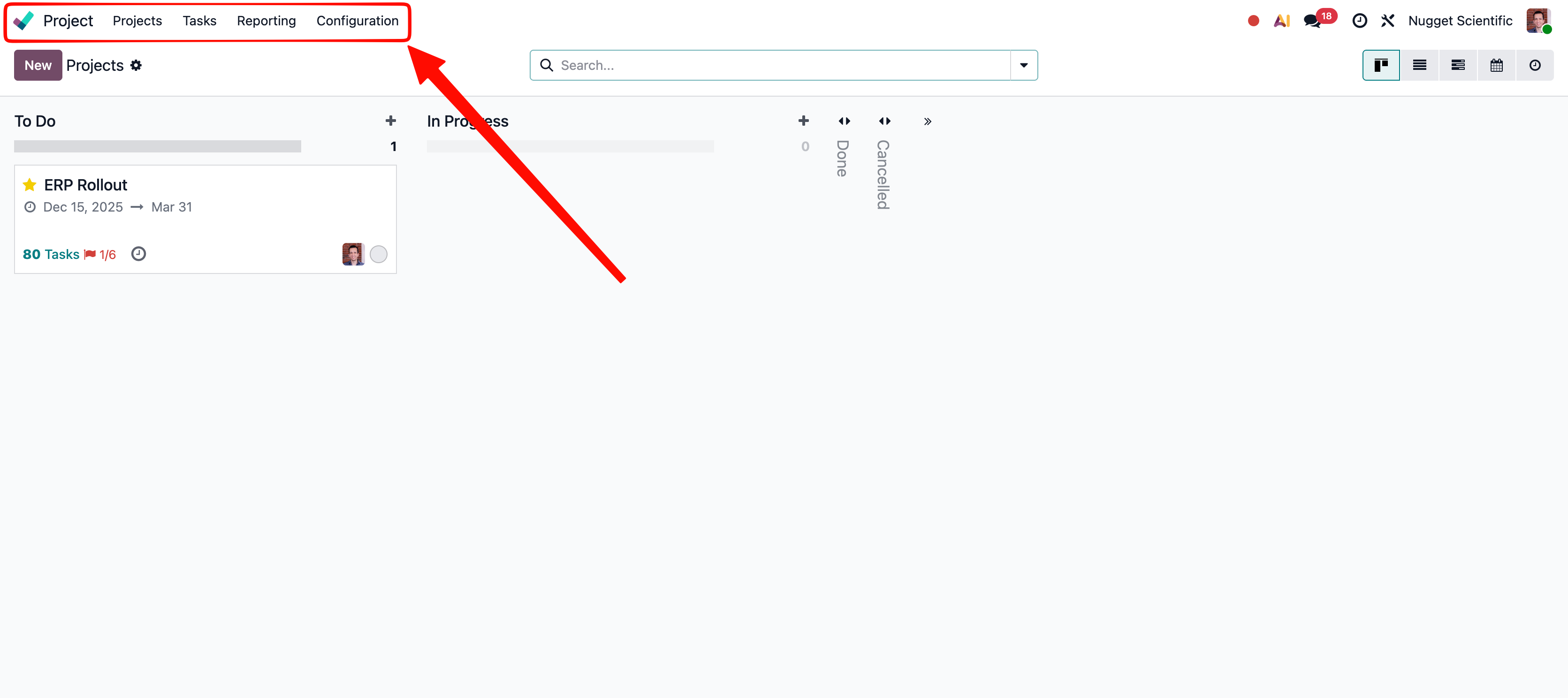
Once you're inside an app, the horizontal menu bar runs along the top of the screen. Each app has its own menu bar. Click any item for a dropdown of related screens.
The menu bar moves you around within an app. The app launcher moves you between apps.
3. Tables
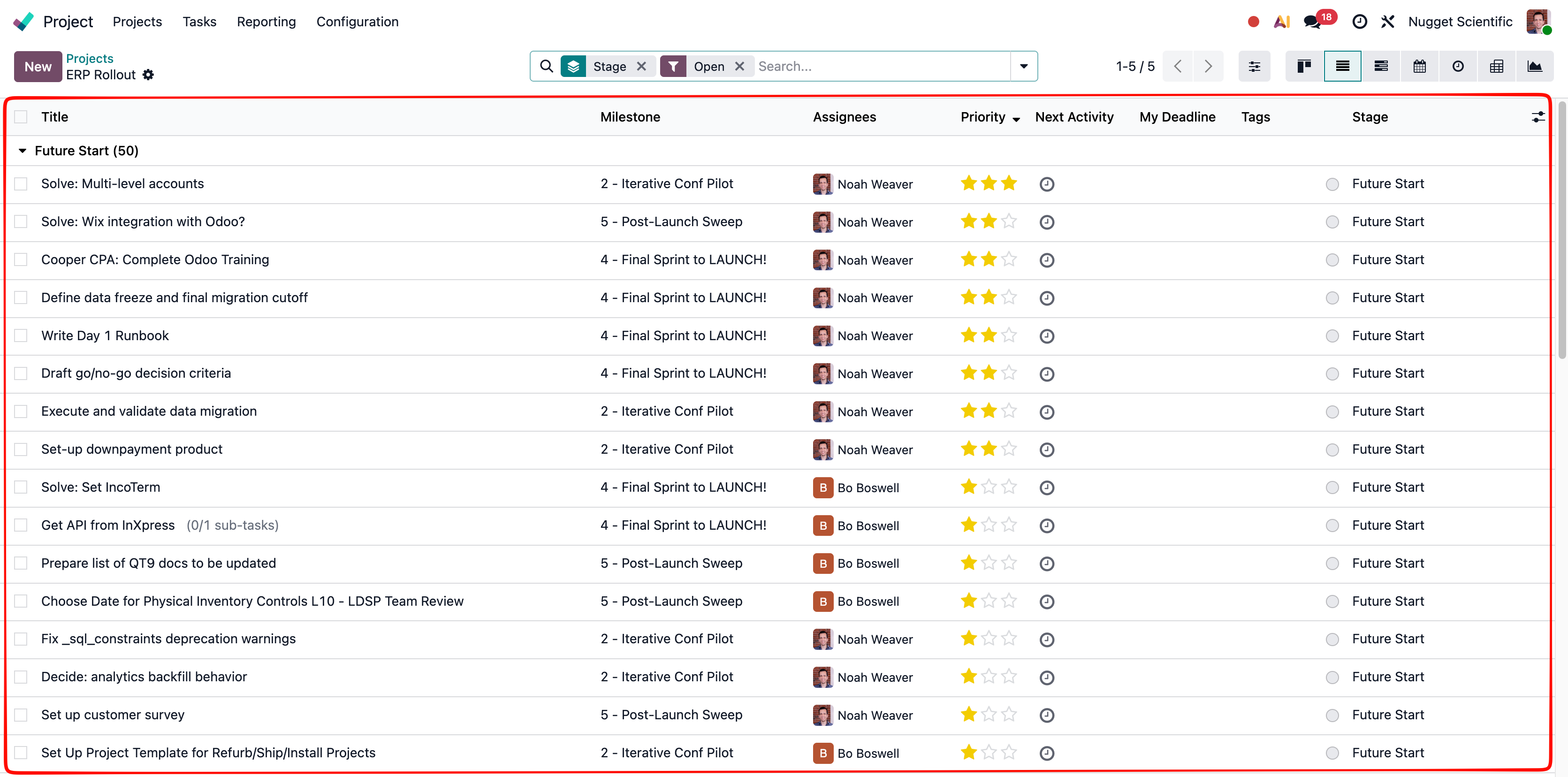
There are two ways of viewing records in Wyatt:
- As an individual record (covered below in Record View).
- As a table, where many records are shown together. Screens like All Tasks, Contacts, or Products are all tables.
4. Filters
Tables can hold thousands of items. Filters are how we narrow them down.
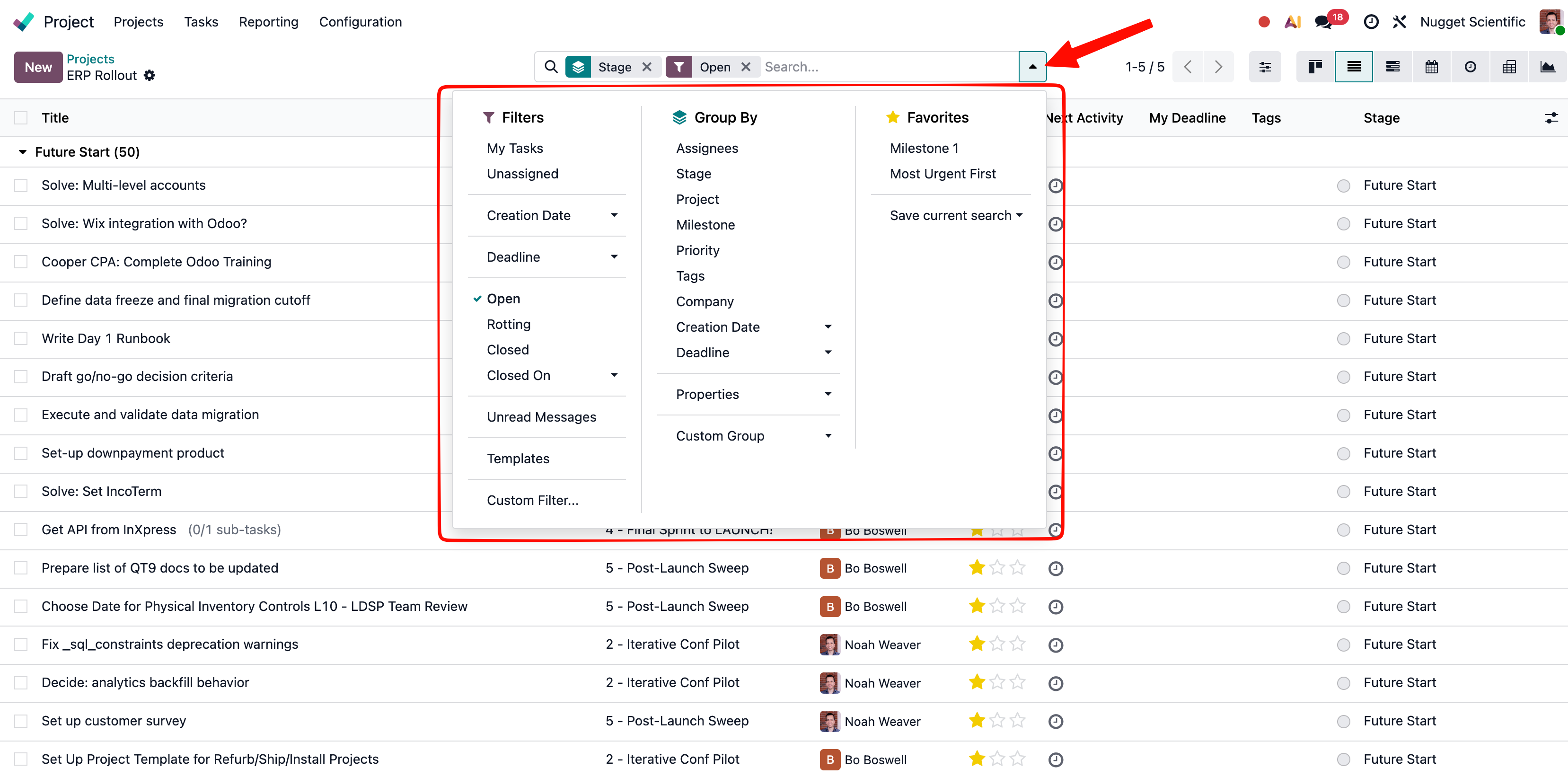
The search bar at the top of every table does four things. Click inside it to see them all.
- Search. Type a keyword, then pick the field to match against from the dropdown (customer name, task number, etc.)
- Filters. Pre-built slices of the data (My Tasks, Open This Week, Under Contract). Click to toggle.
- Group By. Stack records under a grouping row. Group tasks by project, by stage, by assignee.
- Favorites. Save the current combination of filters and groups. To save: open Favorites, choose Save current search, give it a name. Star it to make it your default view for that screen.
5. Table Views
The same table can be displayed as a list, kanban board, Gantt chart, calendar, pivot table, or graph.
| View | Best for |
|---|---|
| List | Scanning many items, sorting by column, exporting |
| Kanban | Moving items through a workflow (drag between columns) |
| Gantt | Seeing scheduled work on a timeline |
| Calendar | Seeing dated items on a month or week grid |
| Pivot | Summing and aggregating across groupings |
| Graph | Charting totals and trends |
To switch views, click the icons in the top-right of every table.
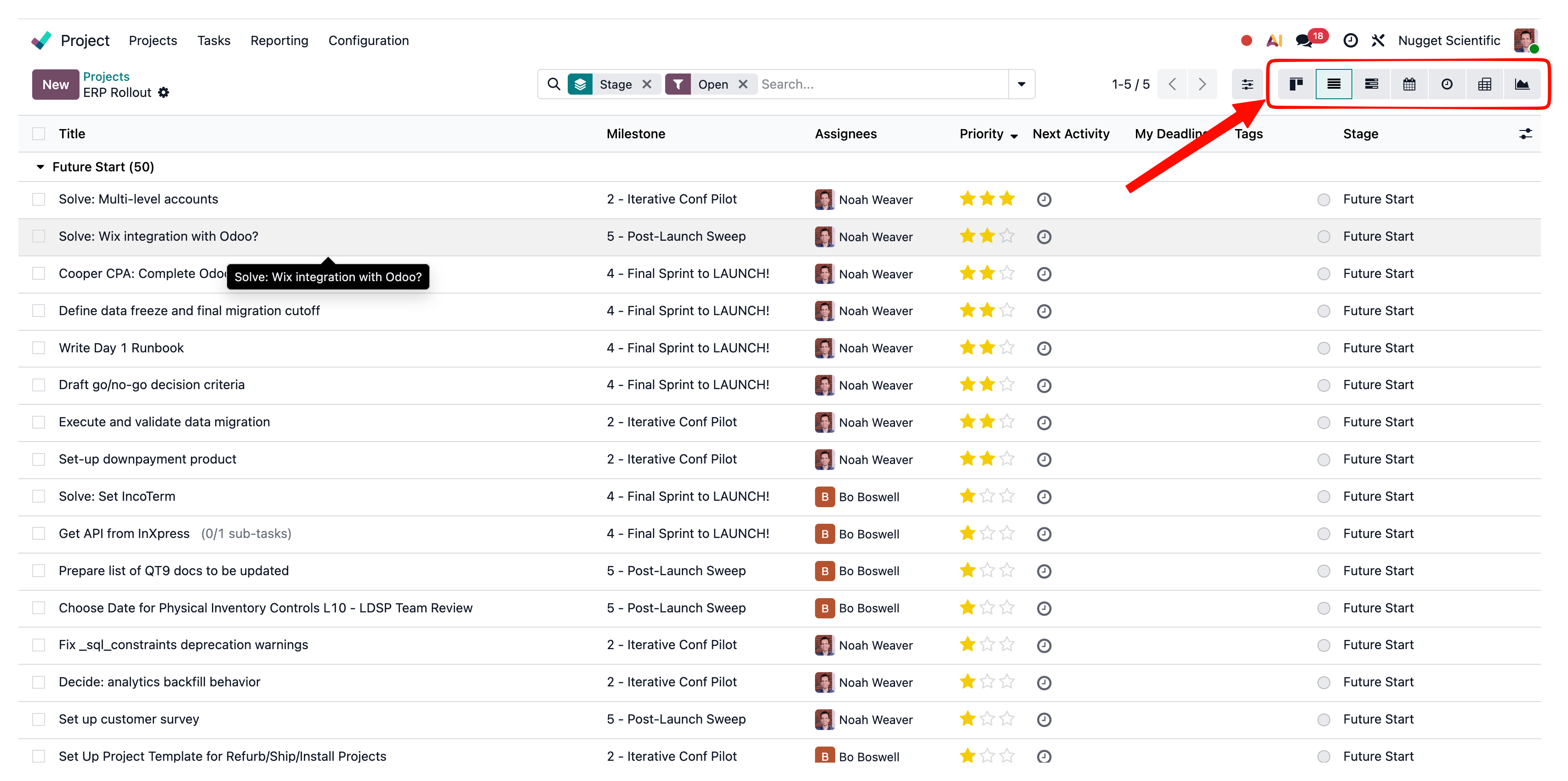
Not every table supports every view. For example, there's no calendar view for inventory items.
6. Record View
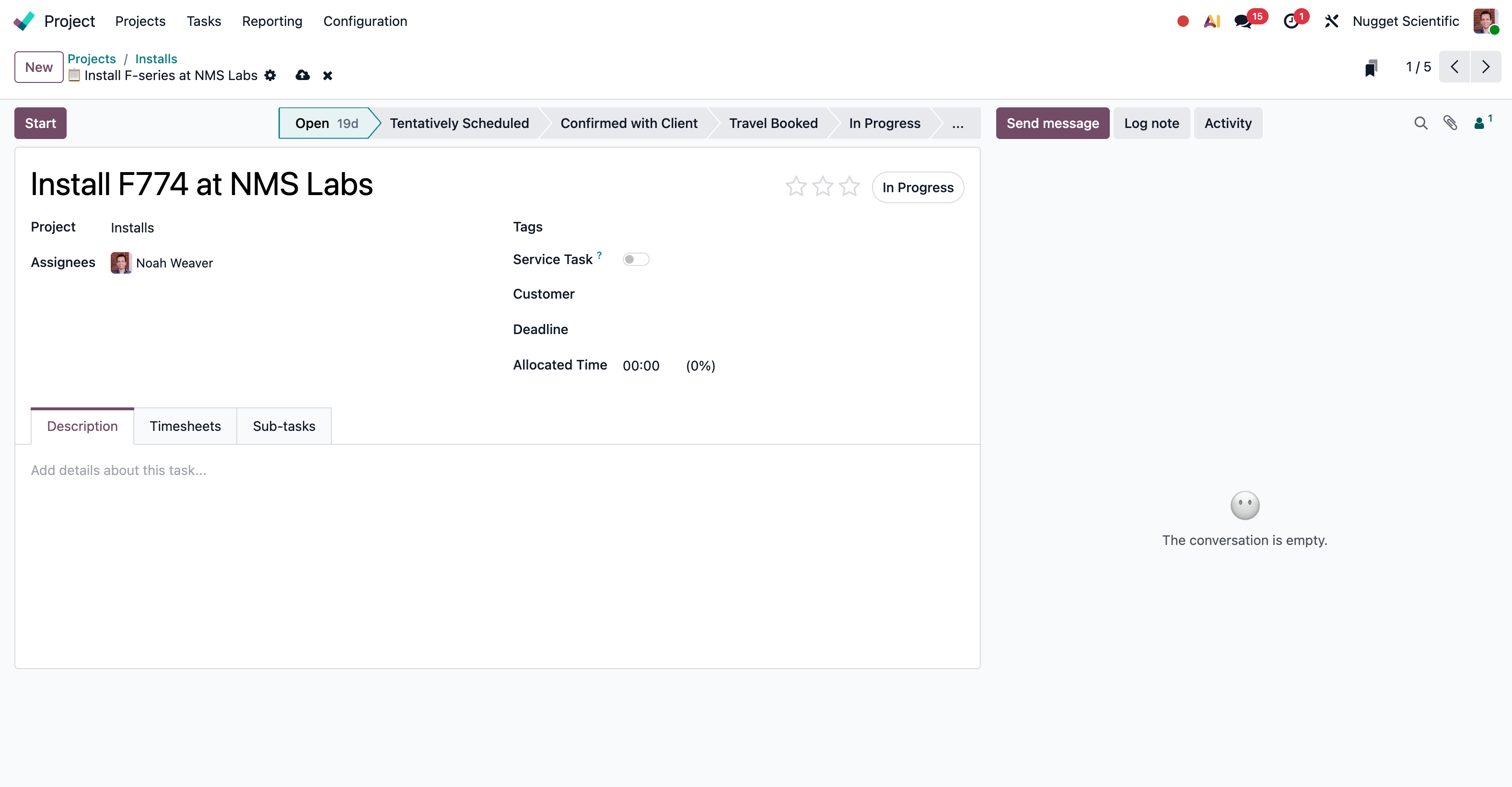
A record is a single item from a larger table. (Example: a task, customer, or invoice.) Click into any row in a table and you're looking at a record view.
Every record view has the same building blocks:
- The status bar across the top shows where the record is in its workflow (see Record Statuses).
- Header fields hold the most important information: name, customer, dates, who's assigned.
- Smart buttons in the top-right jump to related records (see Smart Buttons).
- The chatter on the side or bottom is the running log (see Chatter).
- Notebook tabs at the bottom group the rest of the fields (see Notebooks).
Most of your day in Wyatt is spent inside records.
7. Record Statuses
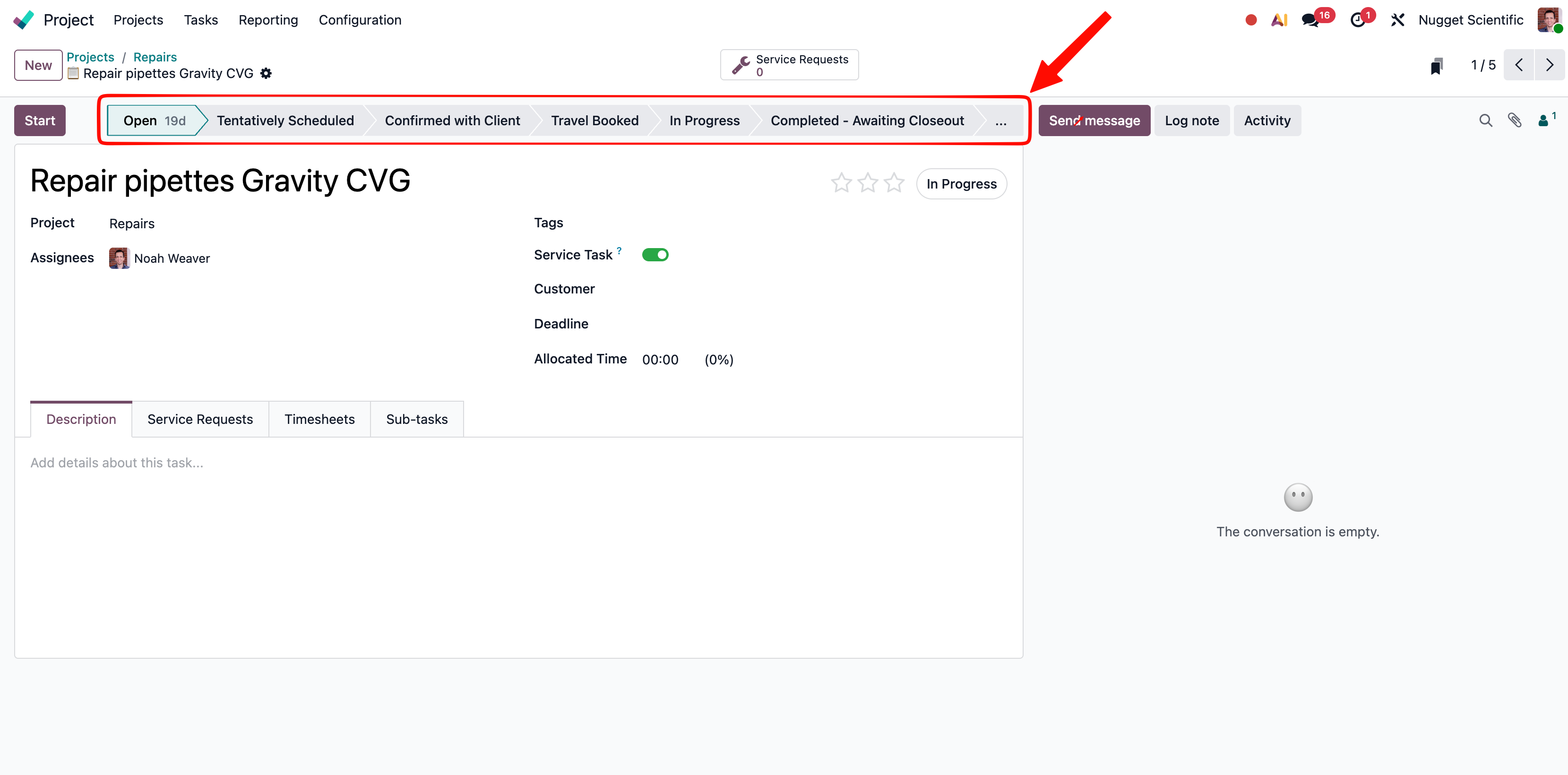
Most records move through a sequence of stages called statuses.
For example:
- A task goes from Open → In Progress → Completed → Closed.
- A sales order goes from Quotation → Confirmed → Done.
You see the same statuses in two places:
- On the record view, as a status bar across the top. The current stage is highlighted, future stages sit to the right, past stages sit to the left.
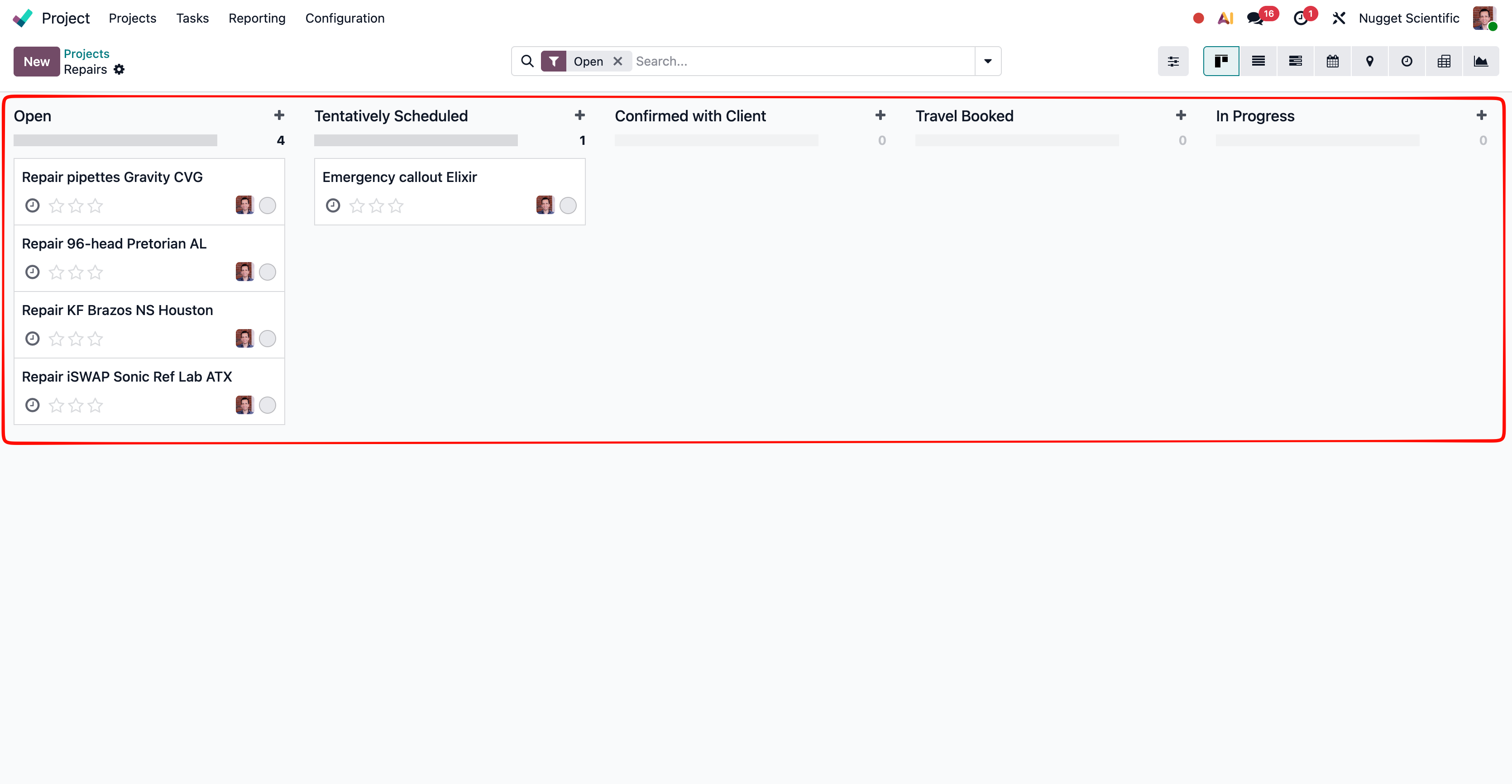
- On the kanban view of the table, as column headers. Each column is one status. Cards grouped by stage make it easy to see the whole pipeline at once.
How to advance a record:
- On many workflows (tasks, CRM opportunities, service requests), click a future stage on the status bar or drag a kanban card into a new column.
- On others (sales orders, invoices, purchase orders), the workflow is gated by action buttons in the record header like Confirm or Validate, not by clicking the status bar.
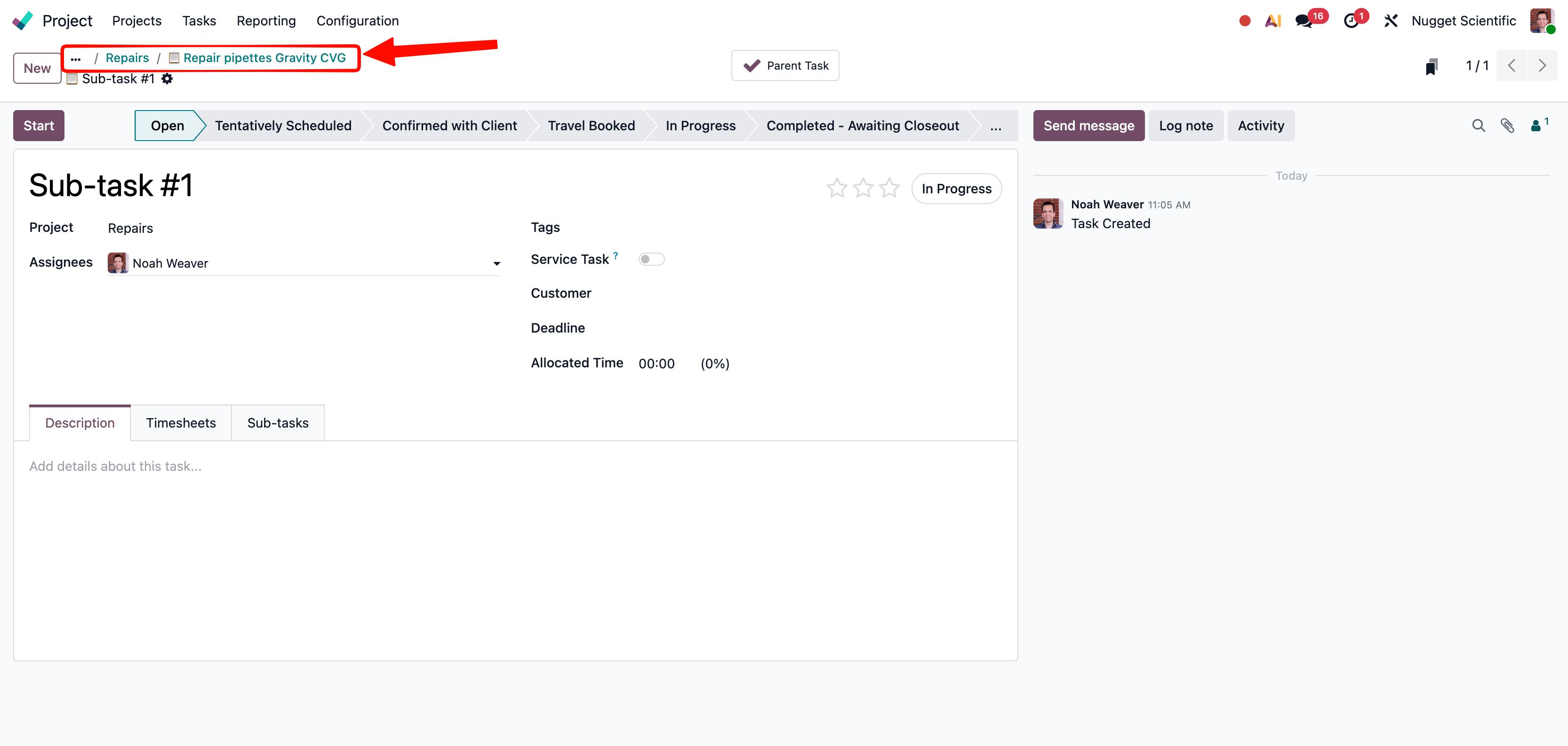
8. Breadcrumbs
When you click from a table into a record (or from one record into a related one), Wyatt keeps track of where you came from. The breadcrumb trail at the top of every screen shows that path. Click any breadcrumb to jump back up a level.
9. Smart Buttons
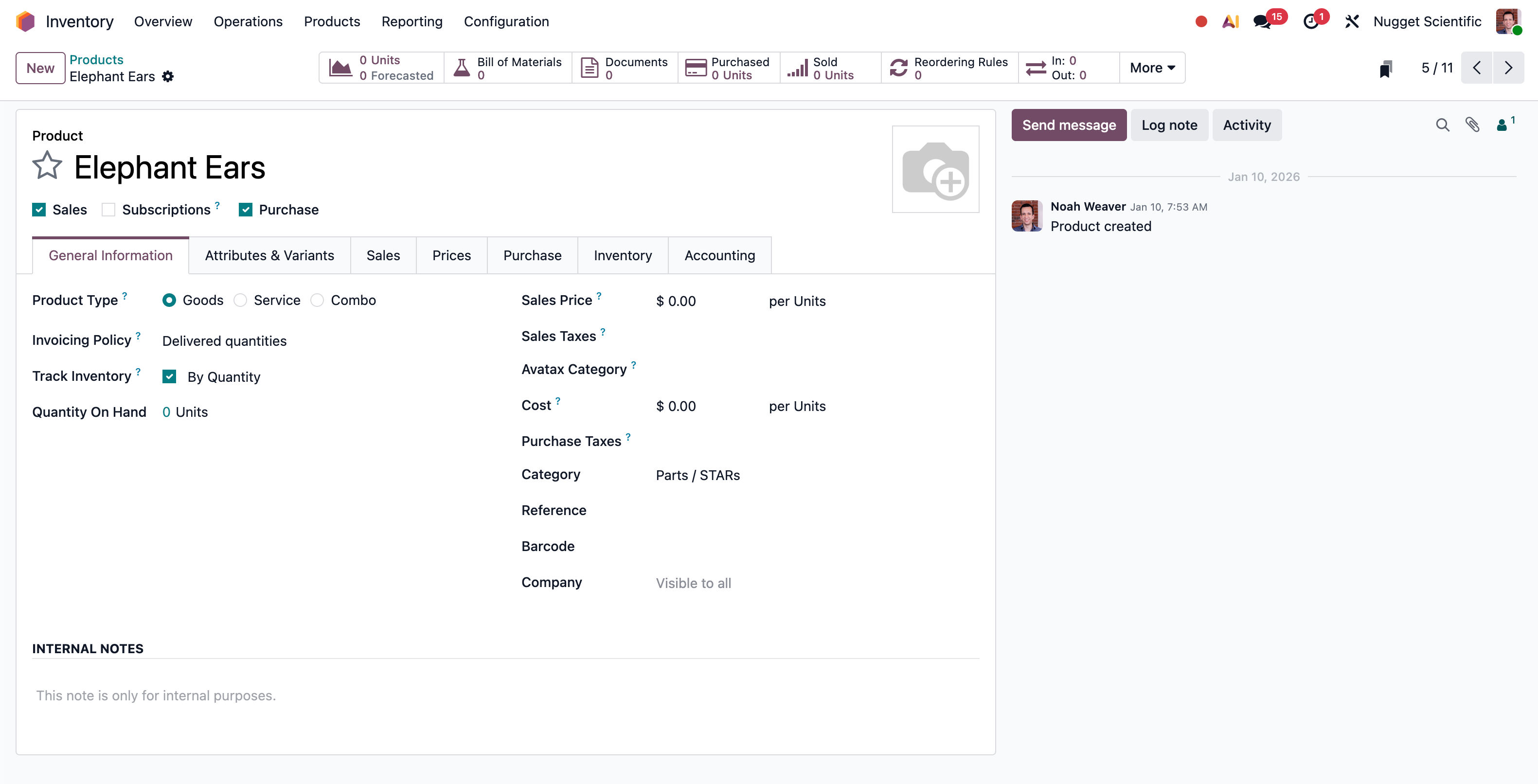
Smart buttons are the fastest way to switch between things related to a given record view.
In the top-right of most records, you'll see a row of count tiles called smart buttons. Each one shows a number and a label. Click it to jump to the related records.
Examples:
- On a customer: 3 Tasks, 12 Invoices, 2 Service Contracts
- On a task: 5 Time Entries, 2 Parts Used, 1 Worksheet
- On a sales order: 1 Invoice, 3 Deliveries
10. Chatter
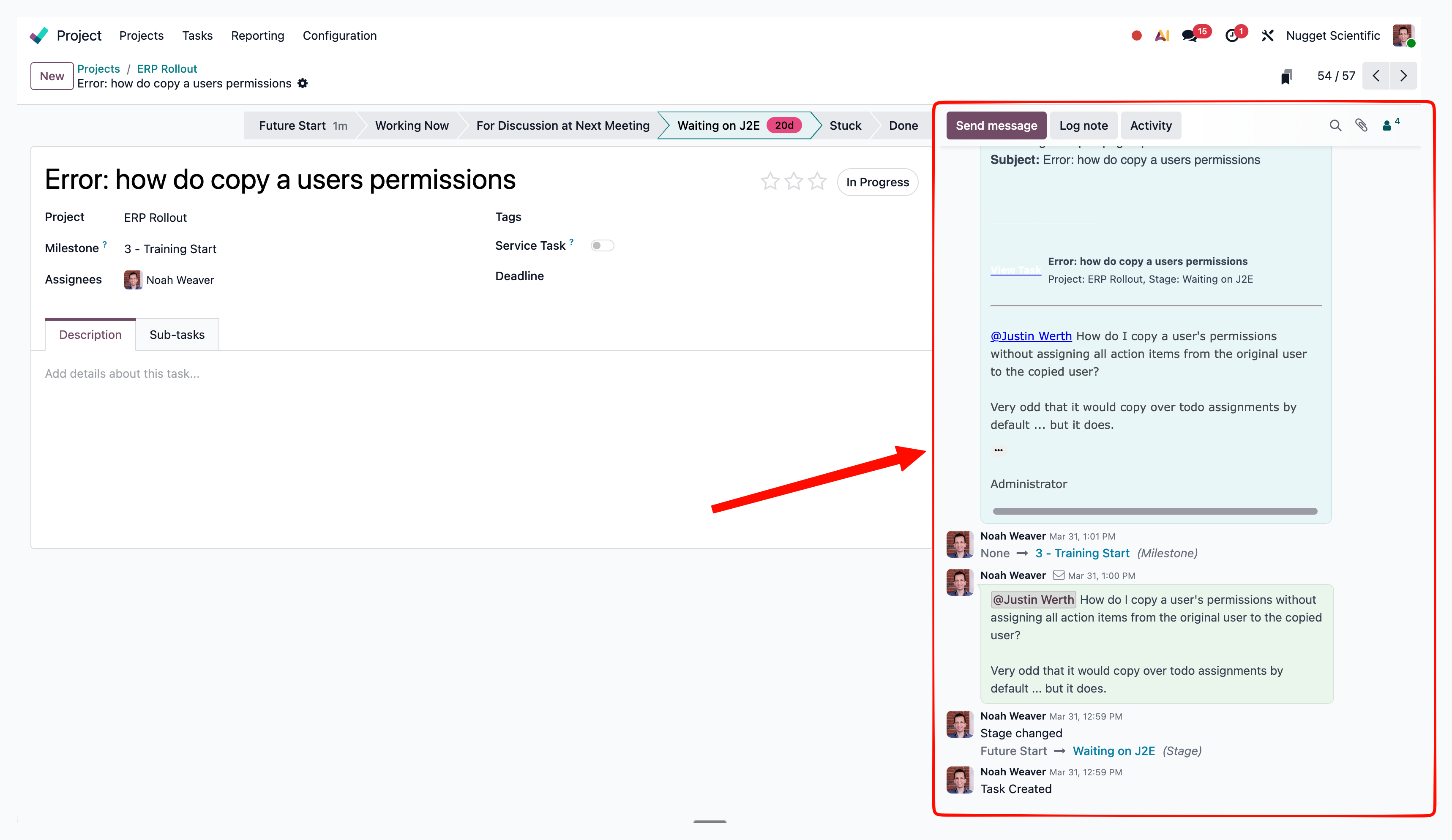
Every record has a chatter: the running log of messages, notes, status changes, and discussions tied to that record.
Three things live in chatter:
- Log notes are internal-only. Use these to leave yourself or a teammate context about the record. External people never see log notes.
- Messages send email to everyone following the record. They're customer-visible when the record has external followers, so reserve them for communication that genuinely belongs on the thread.
- Activities are to-dos attached to this record, with due dates. Your activities across every record also show up in your personal inbox at the clock icon in the top bar, so you see everything you owe in one place.
Followers
Followers get notified when a message is posted to the record. When you're assigned to a task you're added automatically. To add or remove someone, click the people icon at the top of the chatter.
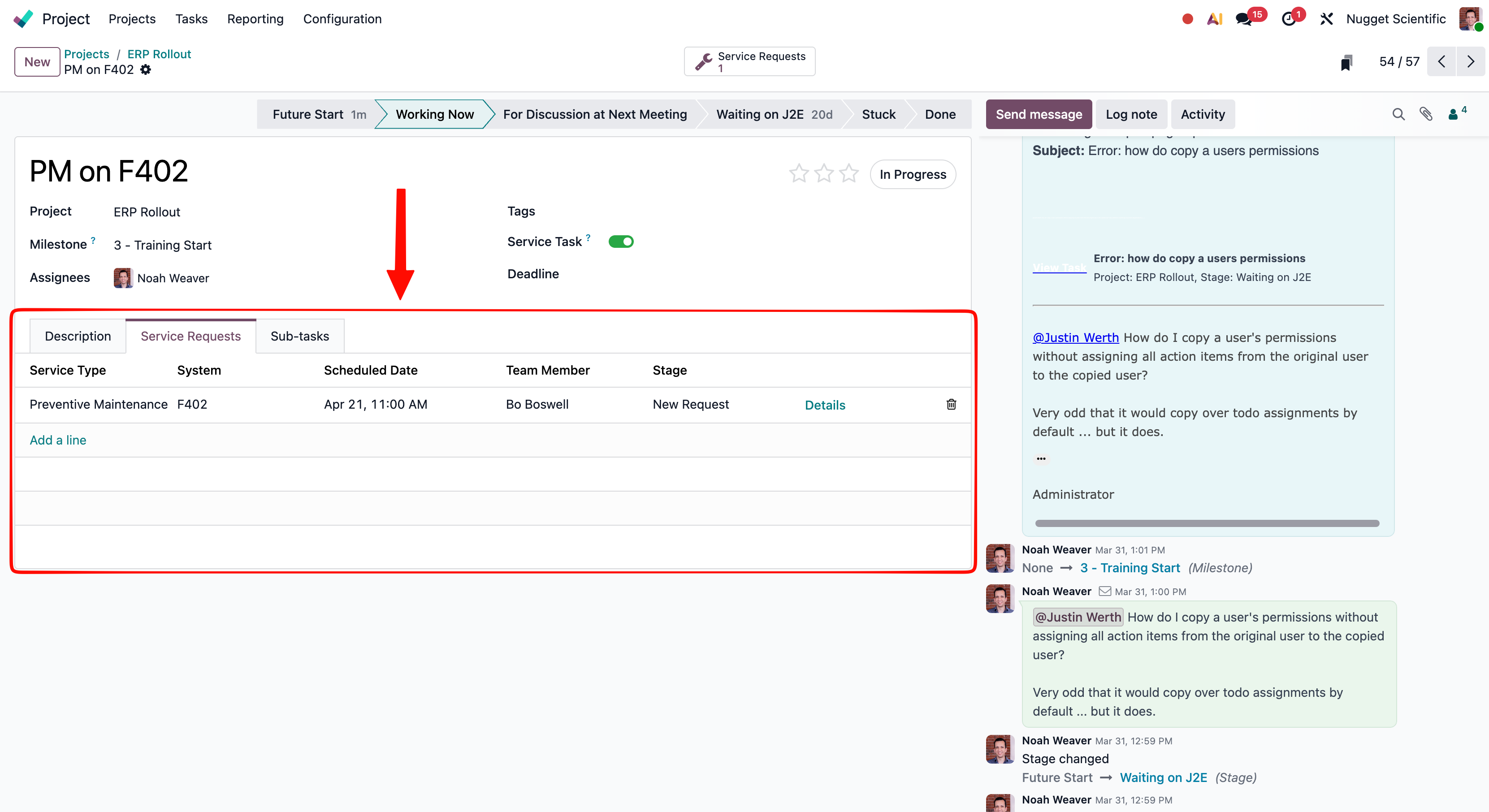
11. Notebooks
At the bottom of most record views sits a notebook: a row of tabs that group related fields. On a task they might be Description, Time Entries, Service Requests, Sub-tasks. Click a tab to switch.
12. Global Search
Global search is the fastest way to get anywhere in Wyatt.
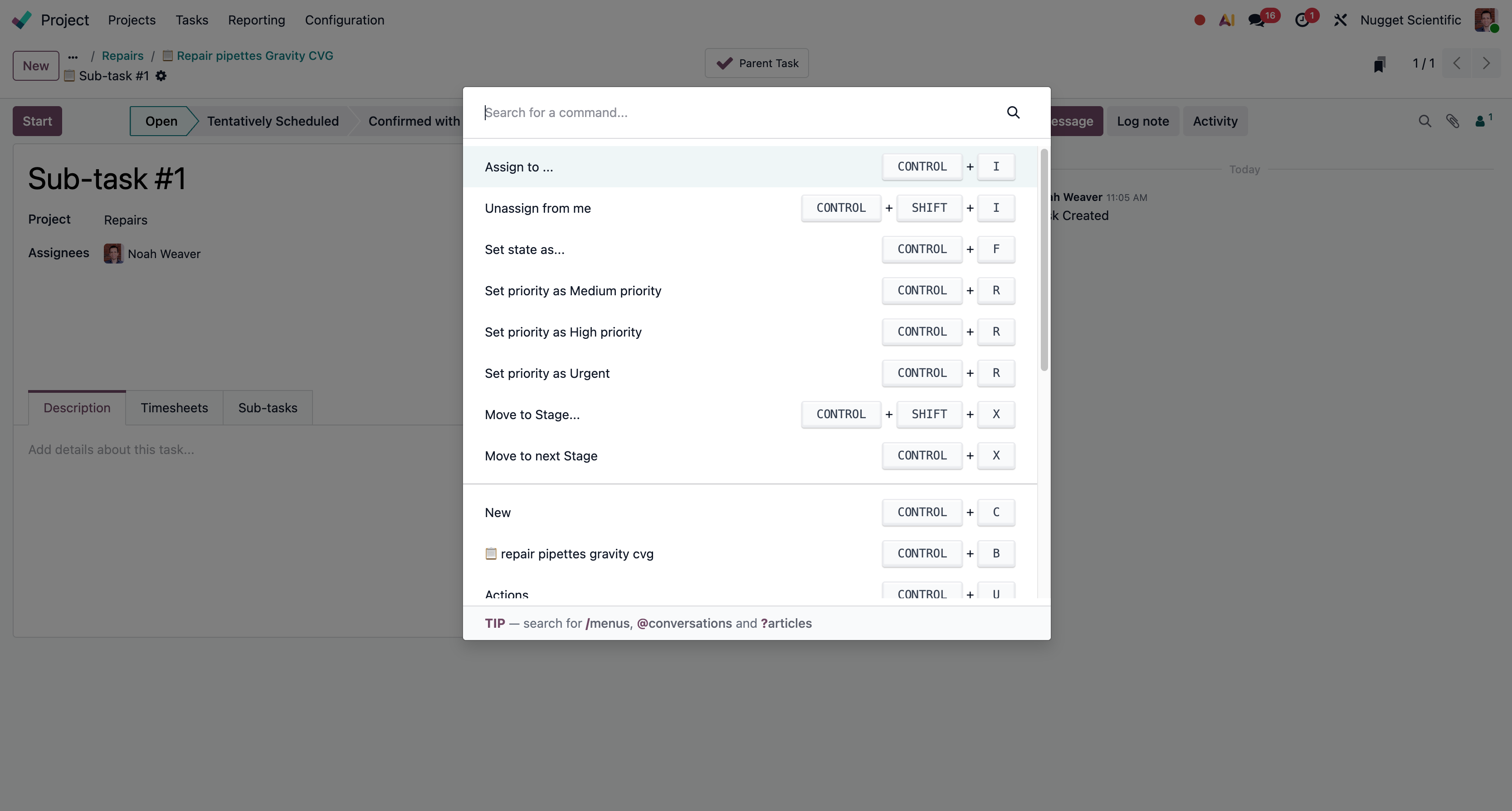
Press ⌘K (Mac) or Ctrl-K (Windows) anywhere in the system and a command palette opens.
Type a customer name, a task reference, or a product SKU, and jump directly to the record.
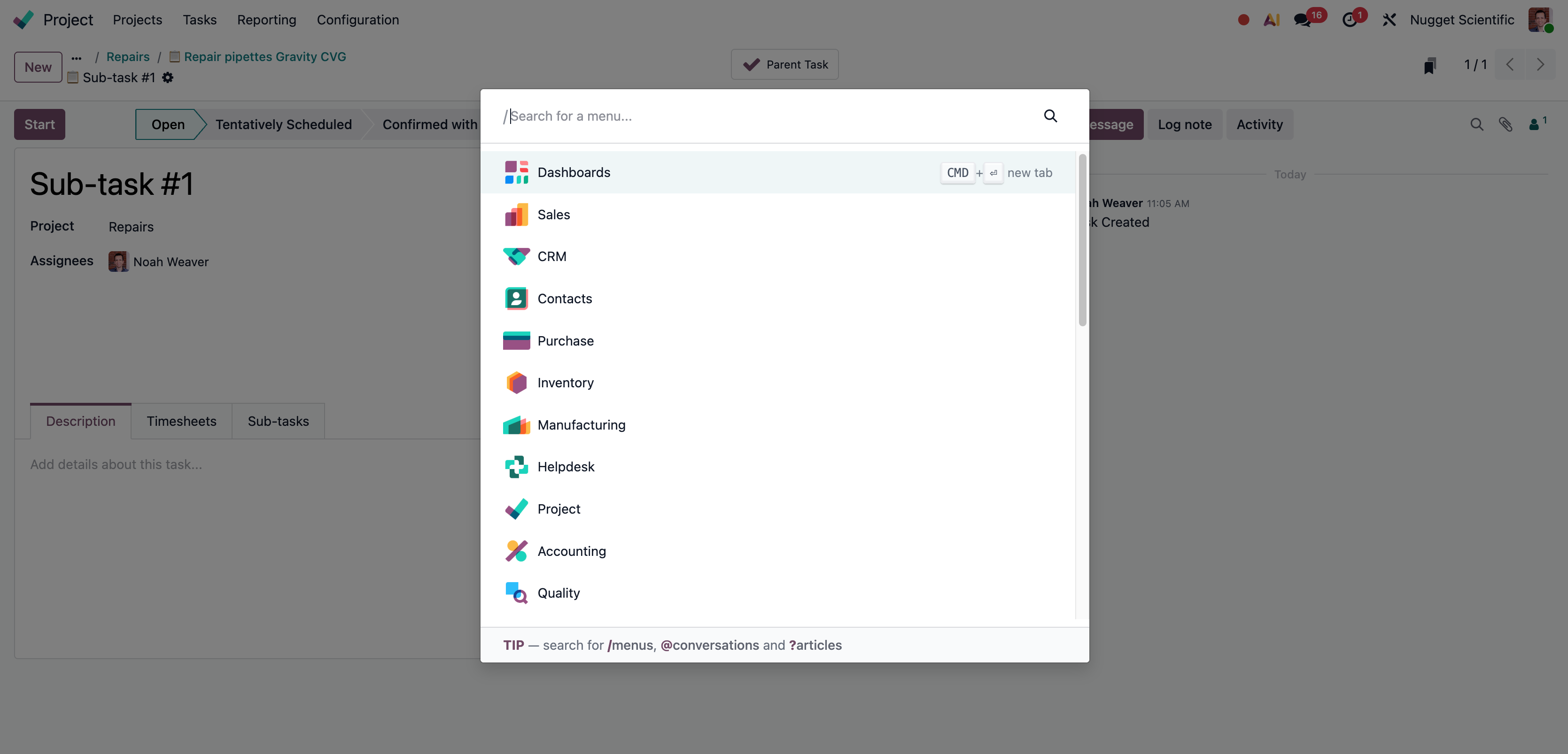
Type a leading / to narrow the search to apps instead of records. Useful when you know the app name but not the specific record.
Where to Go Next
Now that you've got the patterns, head to The Wyatt Toolbox for a tour of every app in Wyatt and what it's used for.